

Try it with sample leads
On Welcome, choose Explore with sample leads. They are marked Sample, nothing is sent to them, and reports leave them out. Clear sample data, above the list, removes them.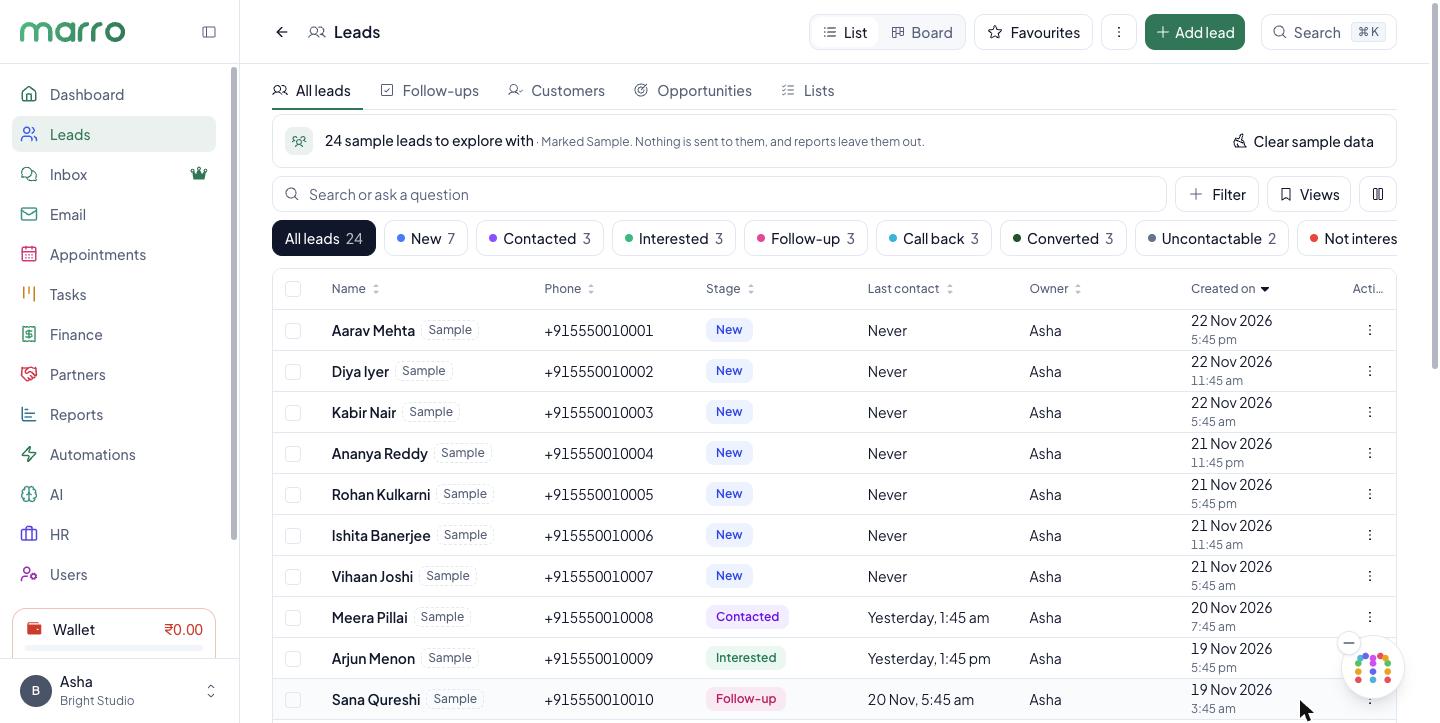
List and board
List shows name, phone, stage, last contact, owner and created date. The stage pills above it filter the list. Search, Filter and saved Views narrow it further. Board has one column per stage. Drag a card to another column to move the lead.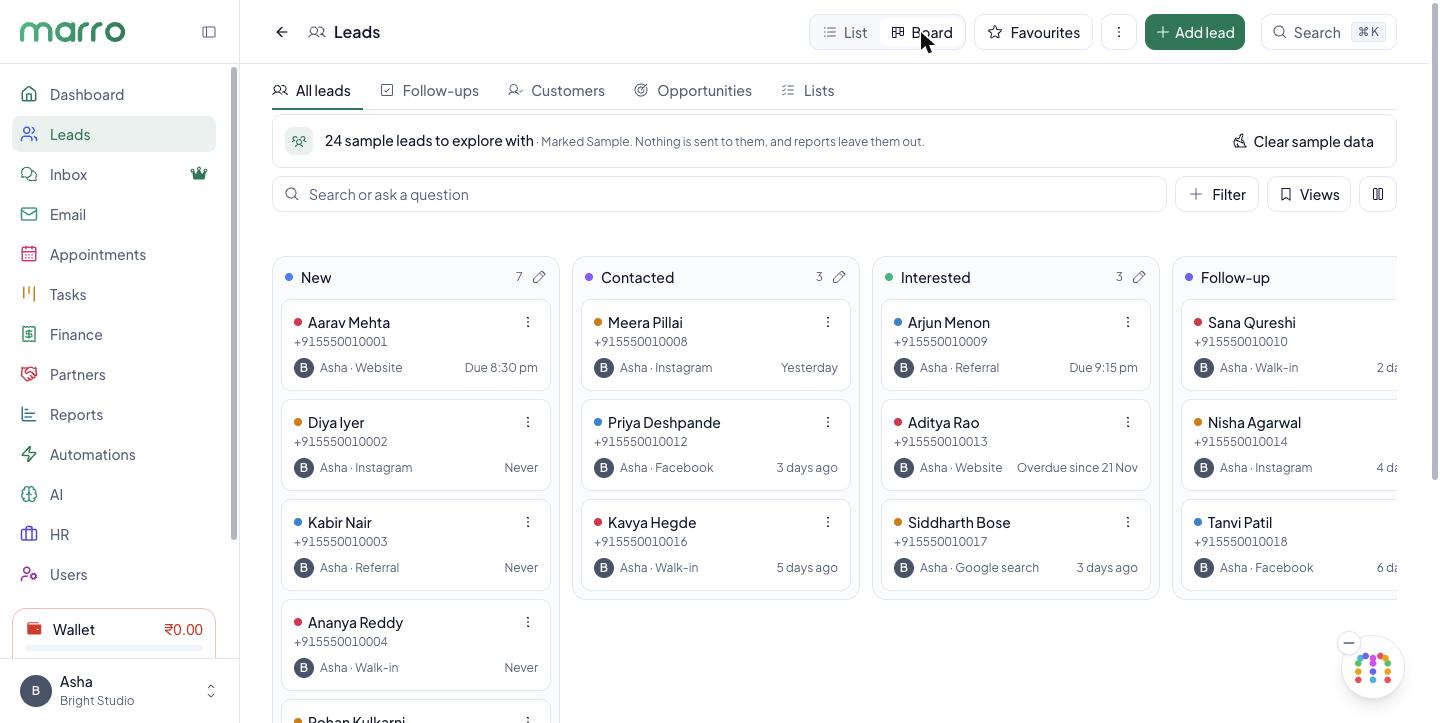
Saved views
Save a filter as a View to come back to it. Its name shows on the Views button.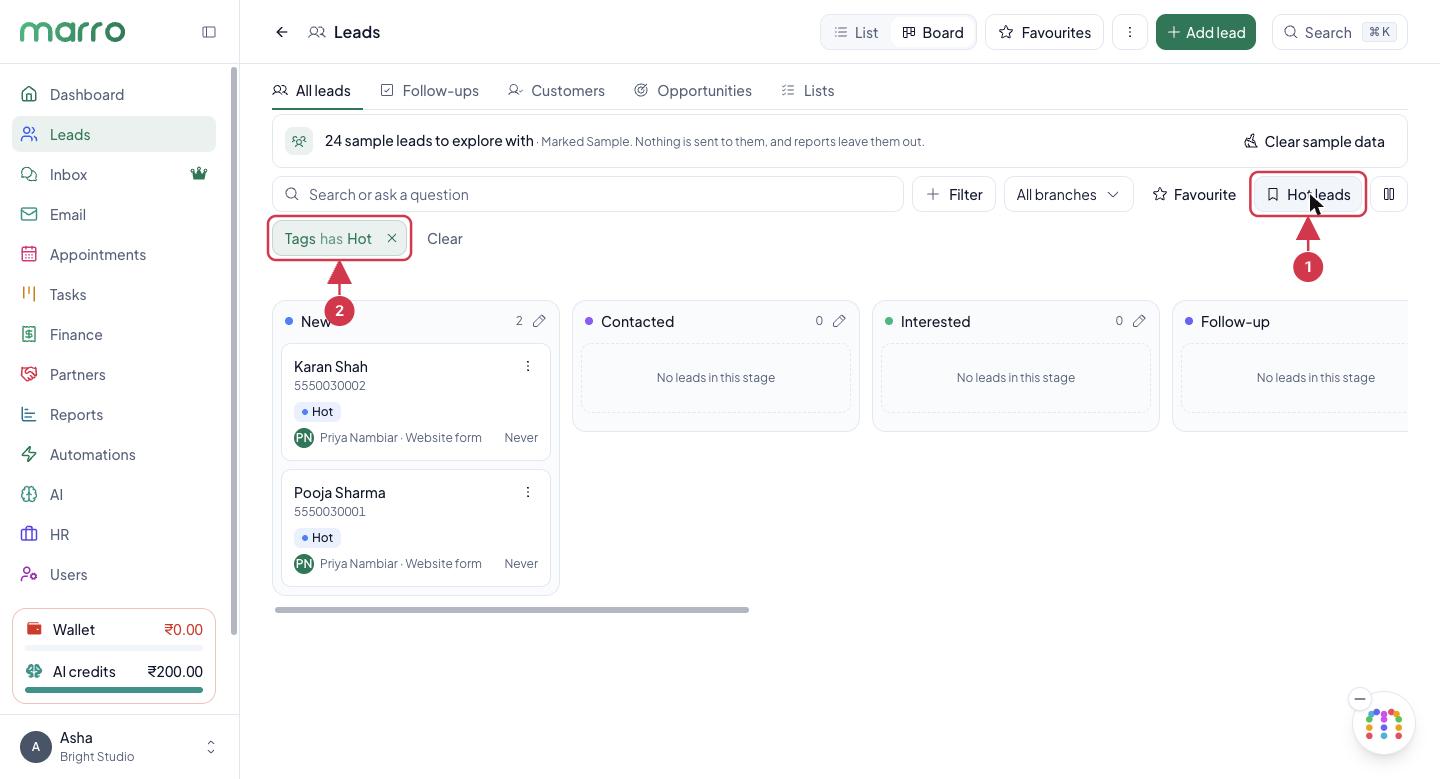
- The saved view’s name on the Views button.
- Its filter.
Change many leads at once
Tick the leads, then choose Bulk actions in the bar at the bottom.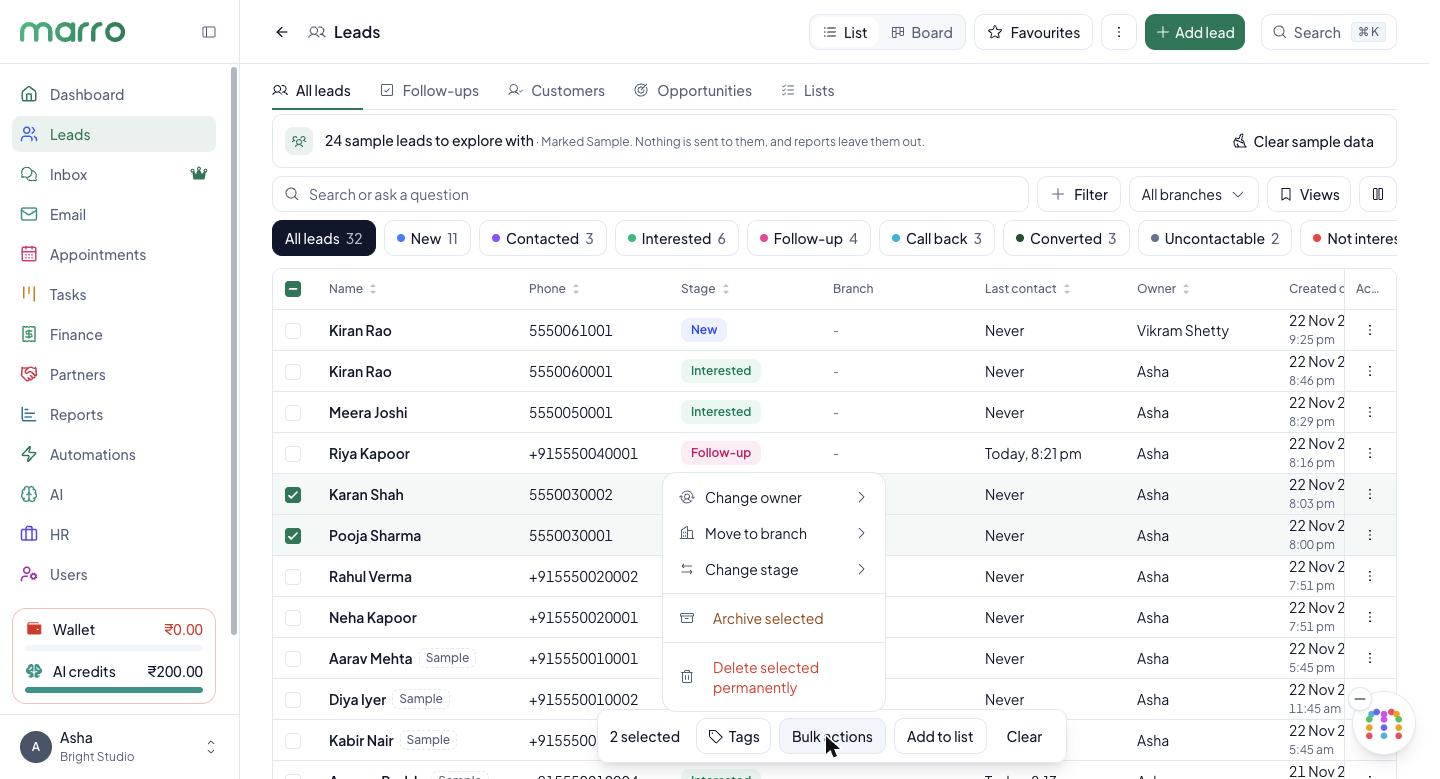
Add a lead
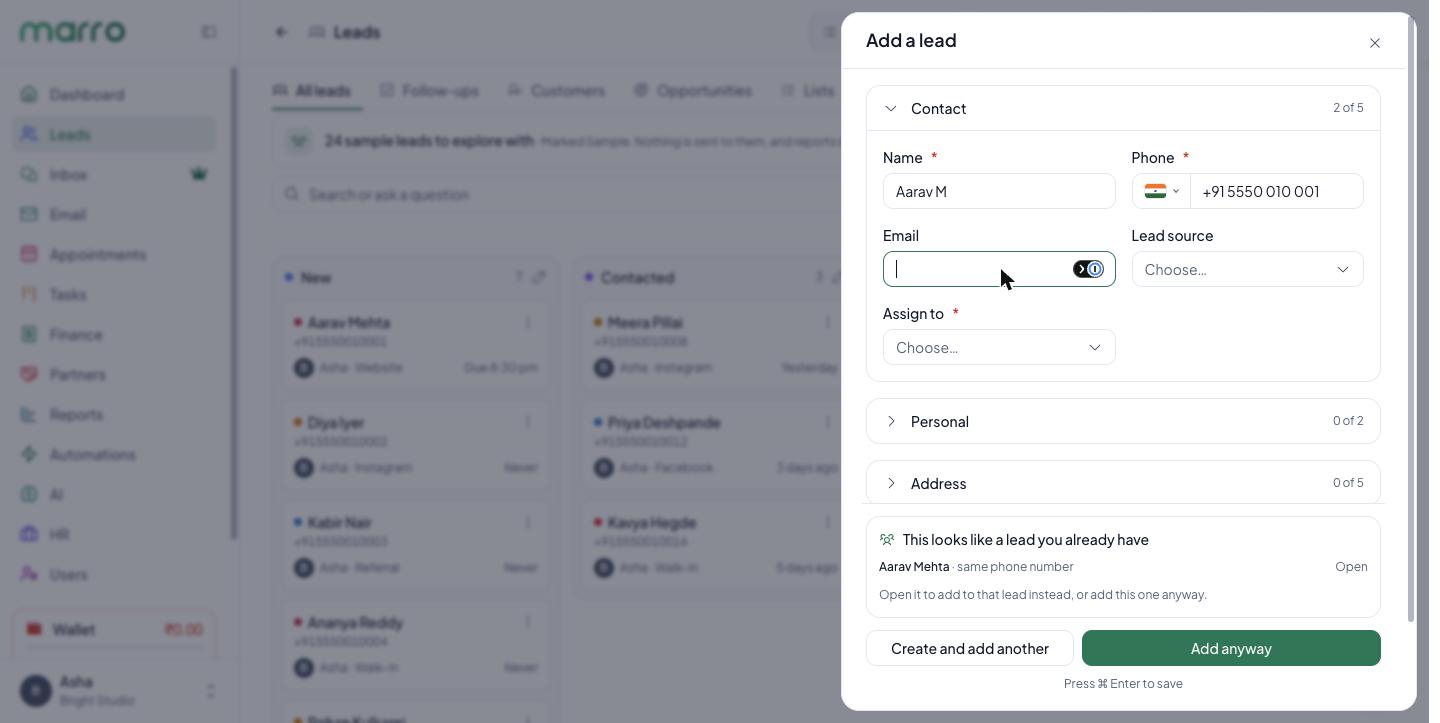
- Choose Add lead. Name and phone are required.
- Assign to starts with you. Pick someone else if the lead is theirs.
- Open Personal, Address or Priority and intent if you need them.
- Save, or Create and add another.
Work a lead
Open a lead to see details, stage and timeline. Add a note, change the stage, or choose Update to record a call: see Configure Log update.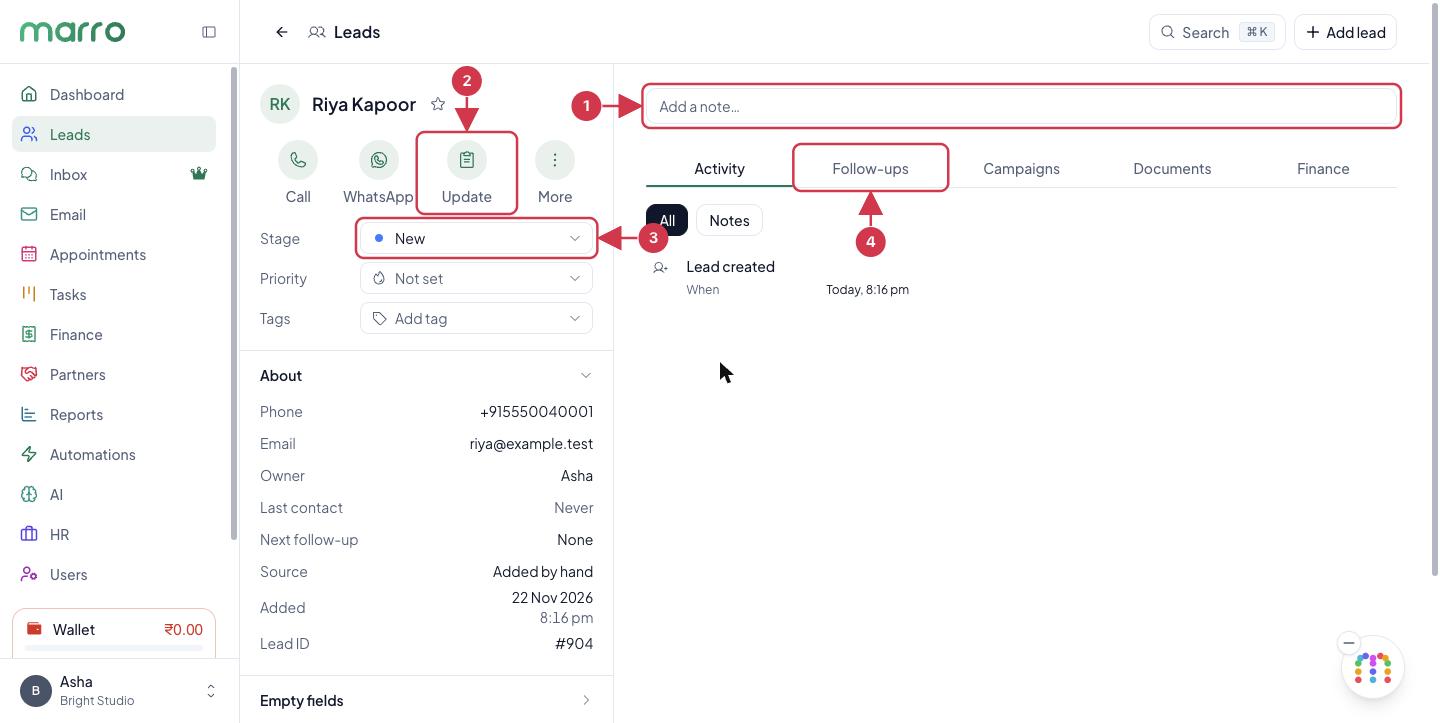
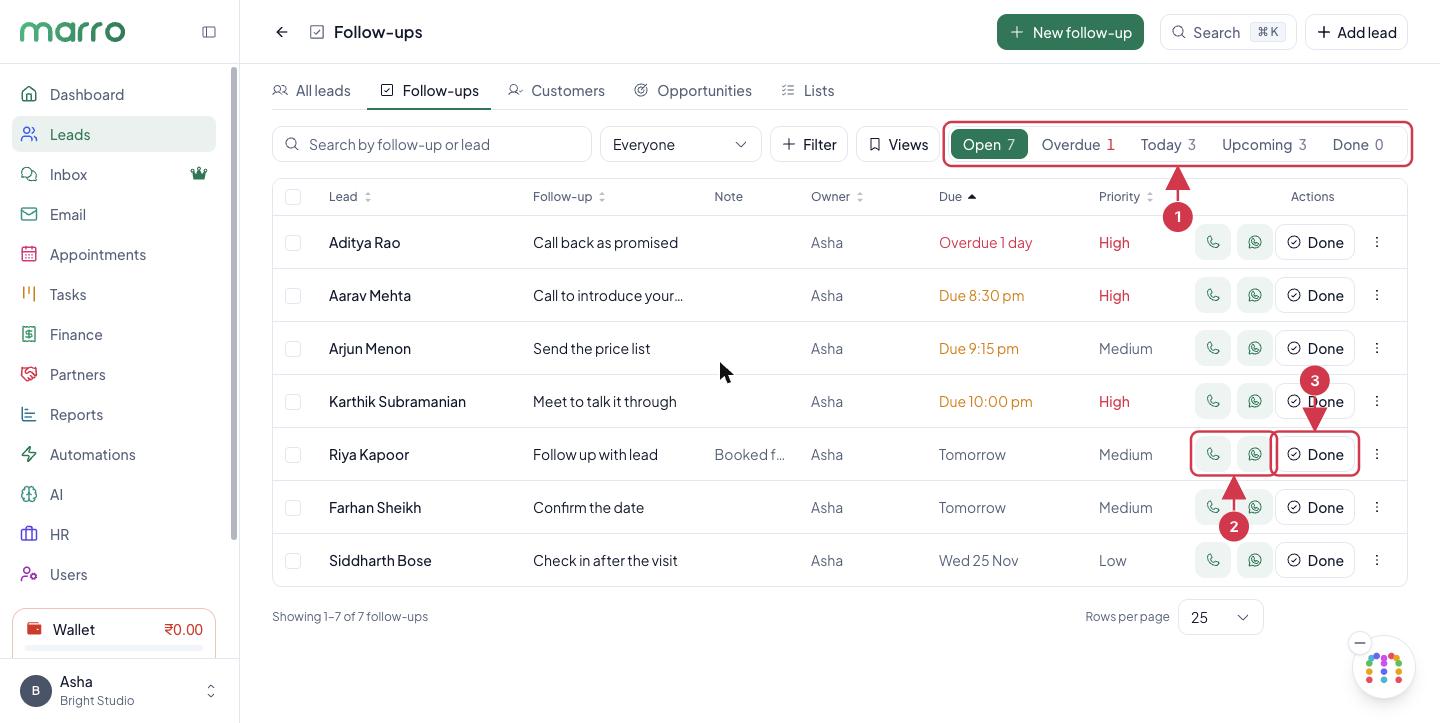
Import a spreadsheet
Open Leads → Import and upload a CSV of up to 10,000 rows. Name and phone are required.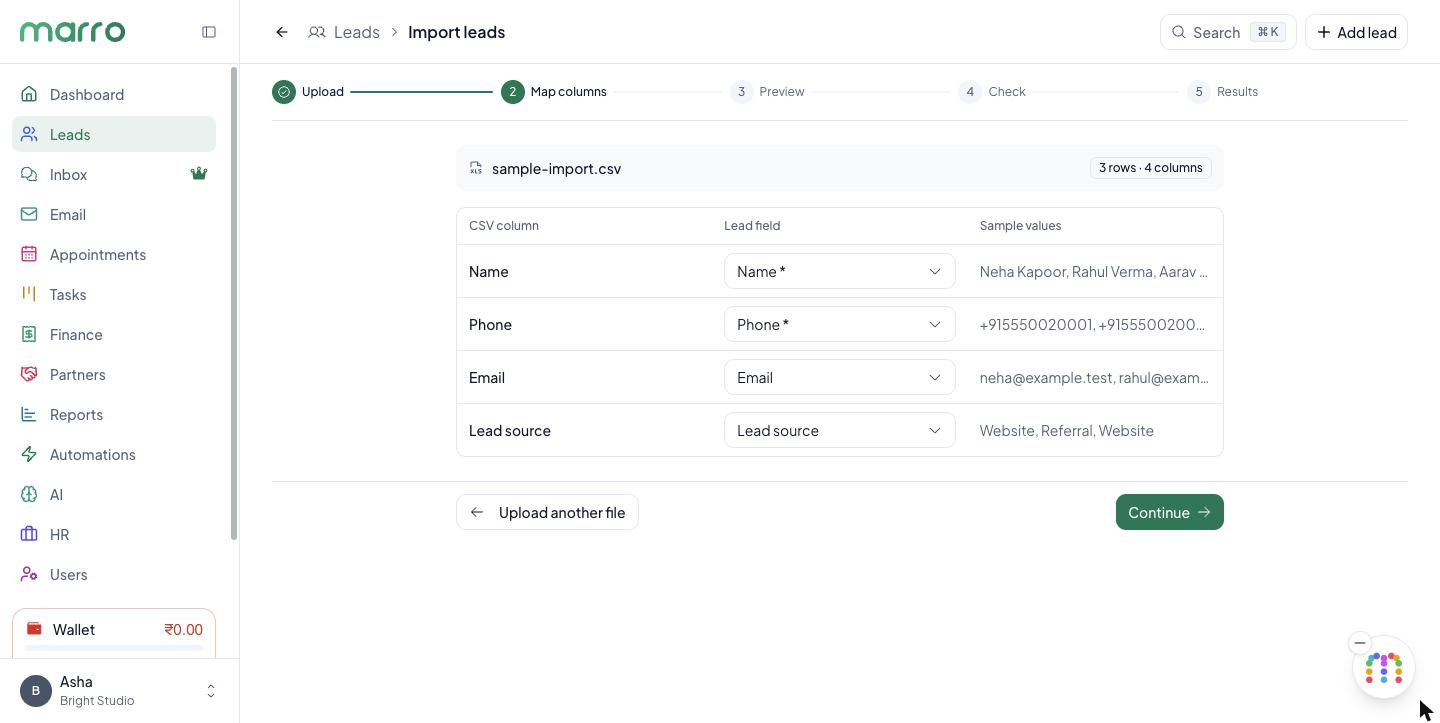
1
Upload
Choose your file.
2
Map columns
Columns named like a field are matched for you. Change any match.
3
Preview
See the first rows as they will be imported.
4
Check
Existing phone numbers are skipped, or tick Update existing leads with new data. Tick people under Round-robin assignment to share out leads with no owner.
5
Results
Shows how many were imported, updated and skipped.
Possible duplicates
Possible duplicates
Leads → Possible duplicates: compare pairs that look the same and merge them. Nothing is deleted.
Stages, fields and who gets each lead
Lead stages
Settings → Leads → Lead stages: rename, recolour and order stages.
Lead fields
Settings → Leads → Lead fields: add, require or hide fields.
Lead assignment
Settings → Leads → Lead assignment: rules that give new leads to people.
Industry starter
Settings → Business → Industry starter: preview a pipeline and fields. Nothing is added until you confirm.
Ask Marro
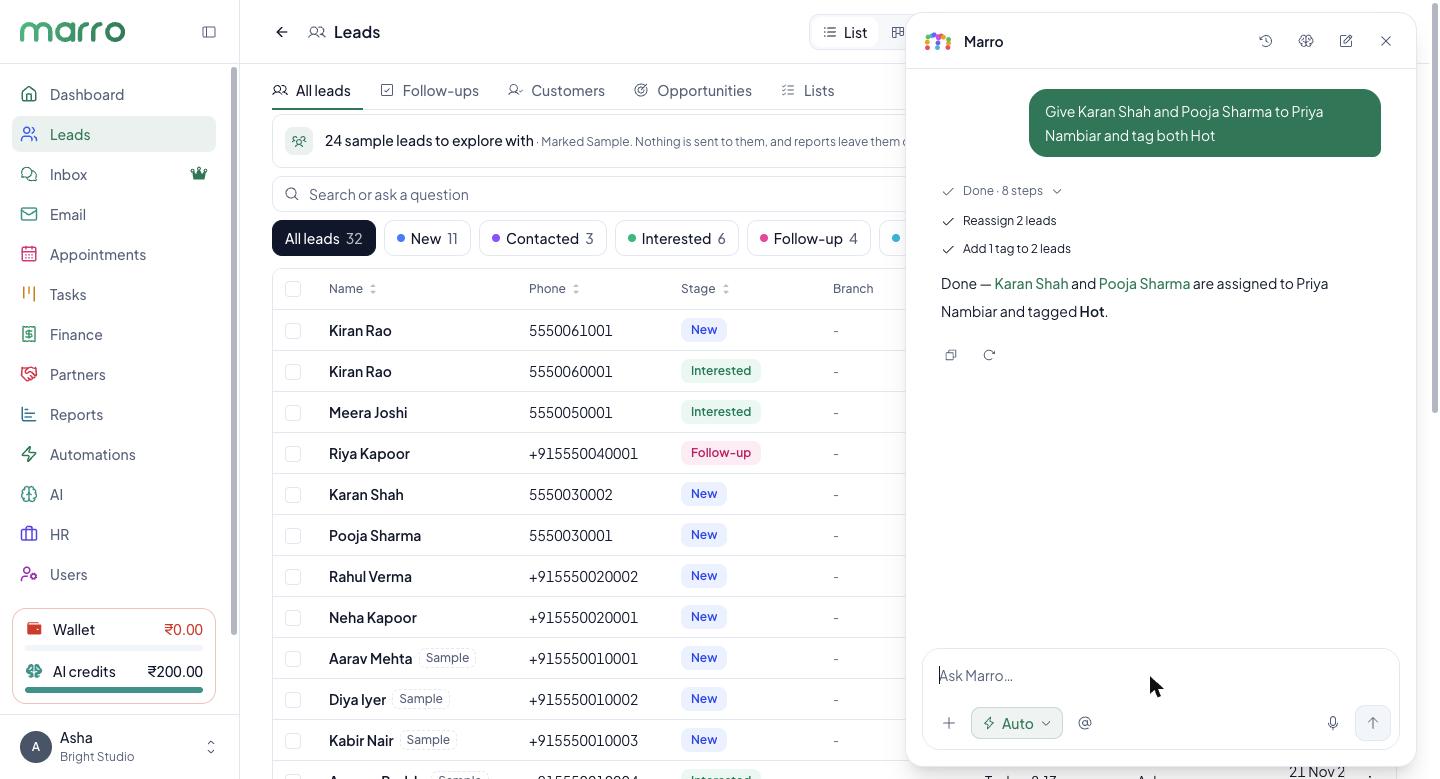
Try asking
“Add a lead: Kiran Rao, phone 98765 43210, came from Instagram.”“Give Karan Shah and Pooja Sharma to Priya Nambiar and tag both Hot”“Save a leads view called Hot leads that shows only leads tagged Hot”“Merge Meera J into Meera Joshi”Marro shows what it will change and asks before saving.